

Step 1: Invite Your Students
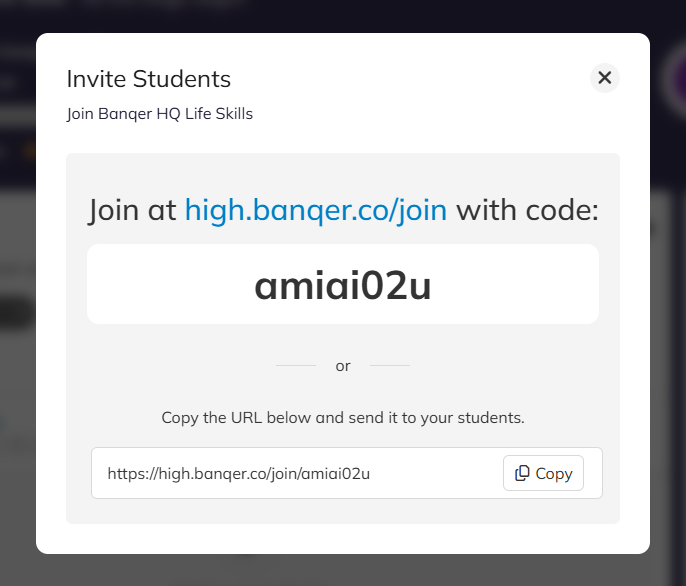
On your Teacher Dashboard, you'll find an Invite Students button at the top right of your Students area.
You can invite your students either using the code option, where the students will enter the following link high.banqer.co/join into their browser, and you will give them your classroom code. You can also display this on your screen at the front of the class to make it even easier.
OR
You can copy the URL link shown and ask the students to follow this.
Step 2: Students Set Up Their Accounts
Students will use the link to create their account. They only need to enter:
1. Their name
2. Their school email address
Top Tip 💡: Encourage students to copy and paste their email address or double-check for typos. Incorrect email addresses are the most common setup issue and will prevent students from receiving the verification email needed to activate their account.
The link students will use in the future to log in from is - high.banqer.co/login
Top Tip 2 💡: If you have students who are struggling and have not received their confirmation emails, you can manually confirm these students so they can continue and log into your class. See a quick guide on how to do this here:
For a quick video on all the troubleshooting issues, scroll to the bottom of this article!
Step 3: Troubleshooting
If a student enters their email address incorrectly, here’s how to fix it:
1. Delete their account from your dashboard.
2. Ask them to use the invitation link again to set up their account.
Please see the guide below on how to delete a student from your Overview area.
Password Assistance
If students forget their password:
They can use the Forgot Password option to reset it themselves.
If this doesn’t work, you can reset their password from your Classroom Overview.
Please see the guide below for visuals on how to edit a students password.
We have also created this quick video covering all of the above troubleshooting issues in one handy place: